

A guided tour, screen by screen.
Three short stories. Each step shows what the guest sees or what the organiser sees. Every screen is a real capture from the tests.
A family workshop with Registrations
A free clay workshop for children: limited places, your own questions, a waiting list and the door list.
- Step 1 of 7
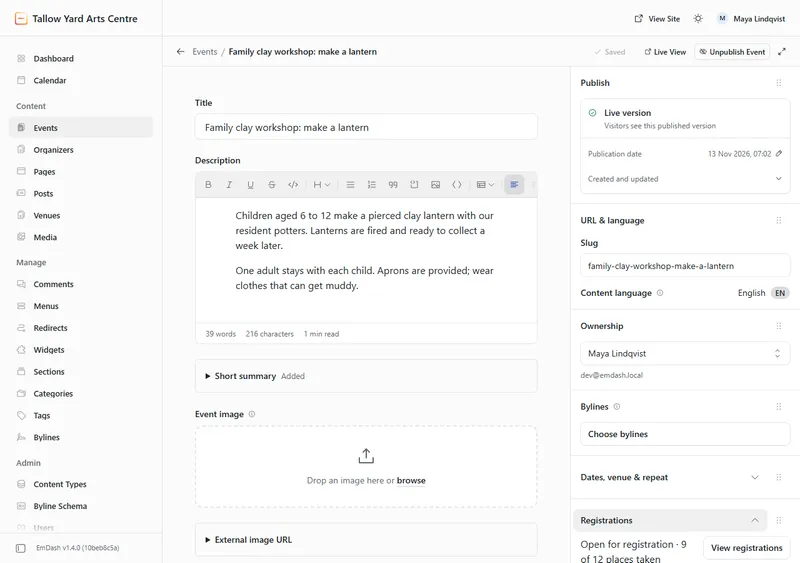
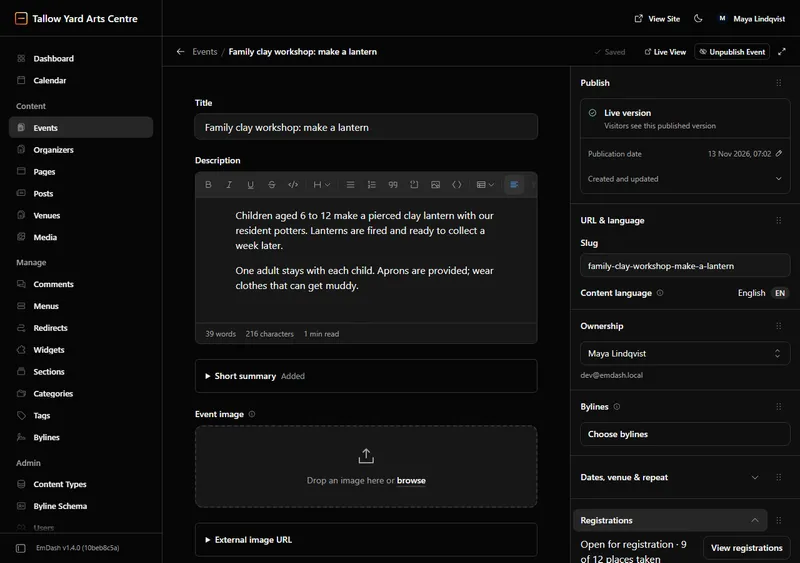
You open registration
In the event editor: number of places, maximum per person, waiting list and your own questions.
What the organiser sees
- Step 2 of 7
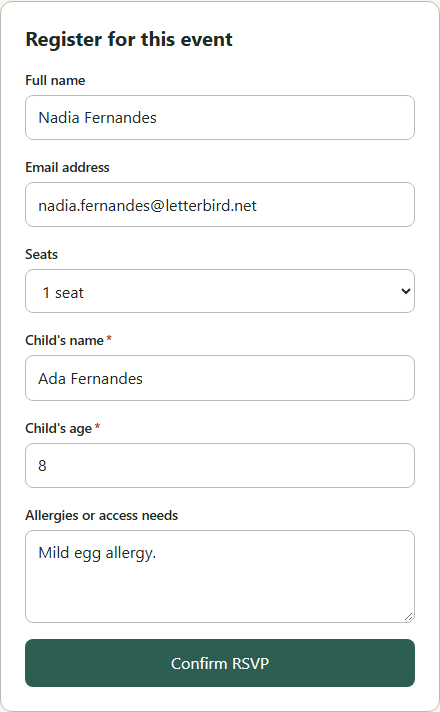
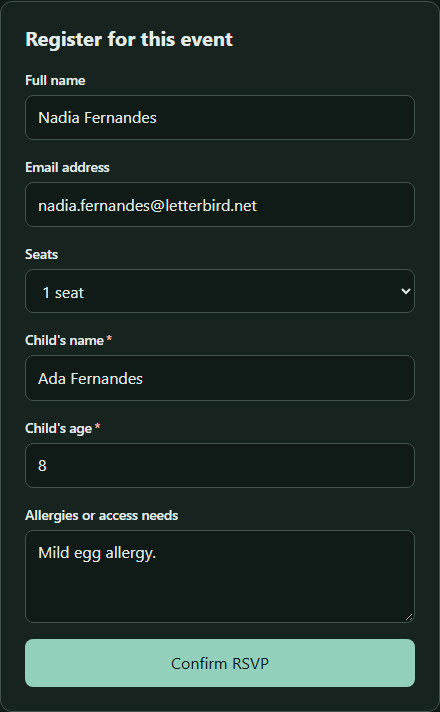
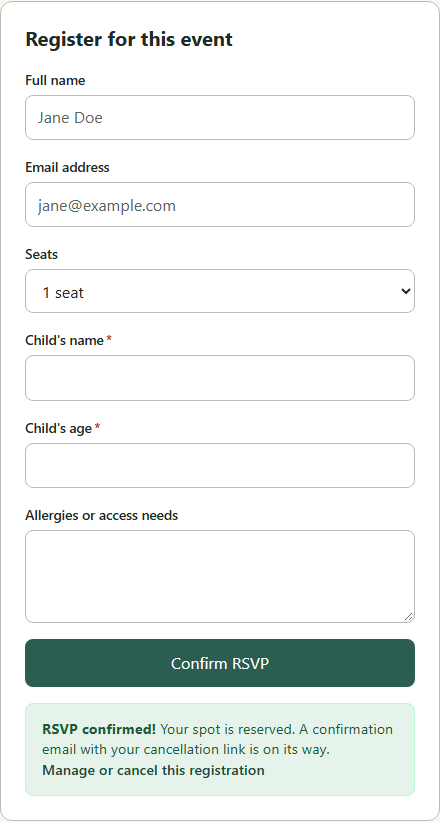
A guest registers
Name, email, number of places and your questions (here the child’s name, age and any allergies), on the event page. No account to create.
What the guest sees
- Step 3 of 7
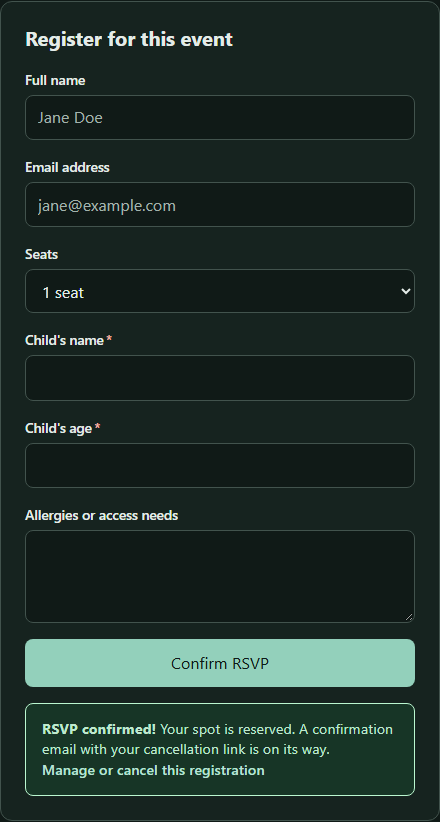
The place is confirmed
The confirmation shows straight away, with a link to manage or cancel the registration.
What the guest sees
- Step 4 of 7
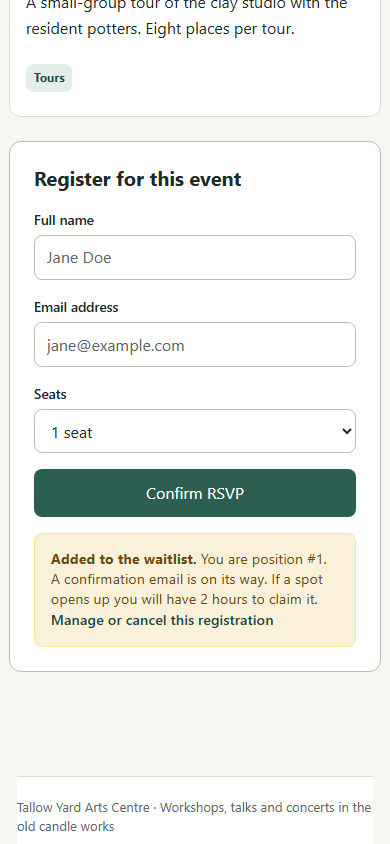
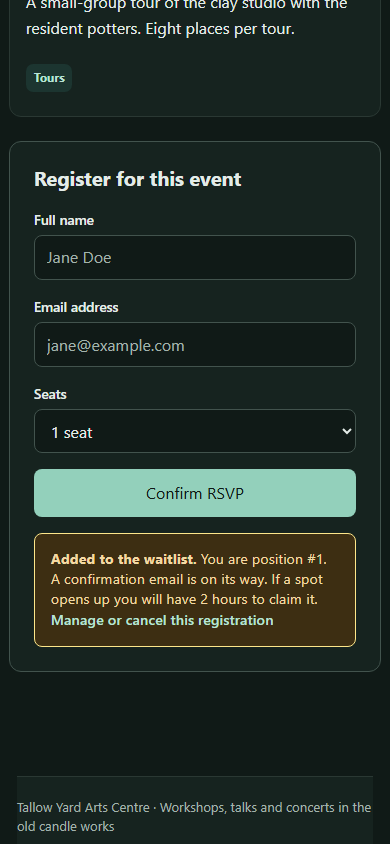
Full: the waiting list takes over
The next guest joins the waiting list and sees their position.
What the guest sees
- Step 5 of 7
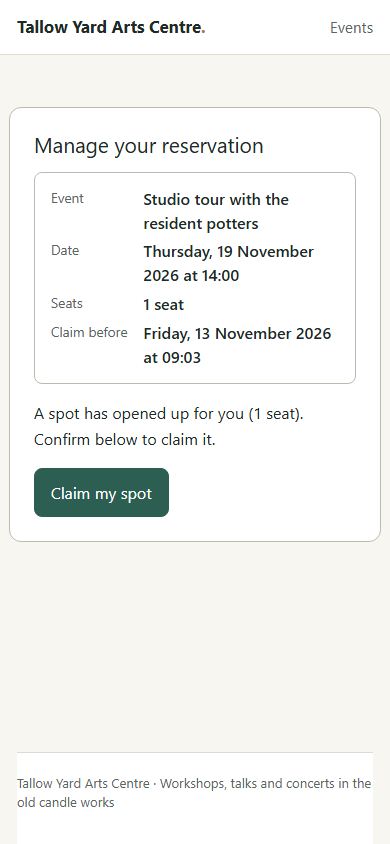
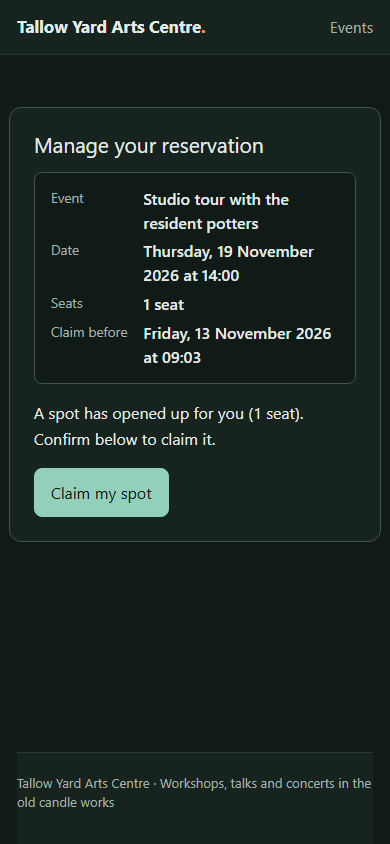
A place opens up
The first person on the list gets an email and has two hours to claim the place.
What the guest sees
- Step 6 of 7
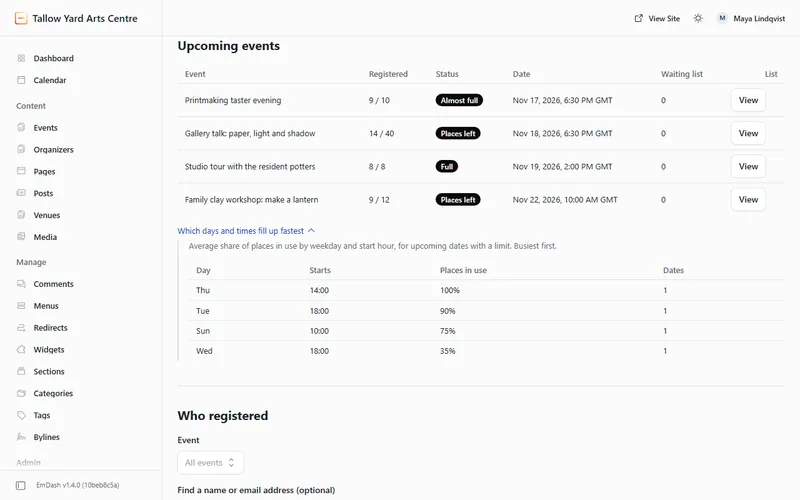
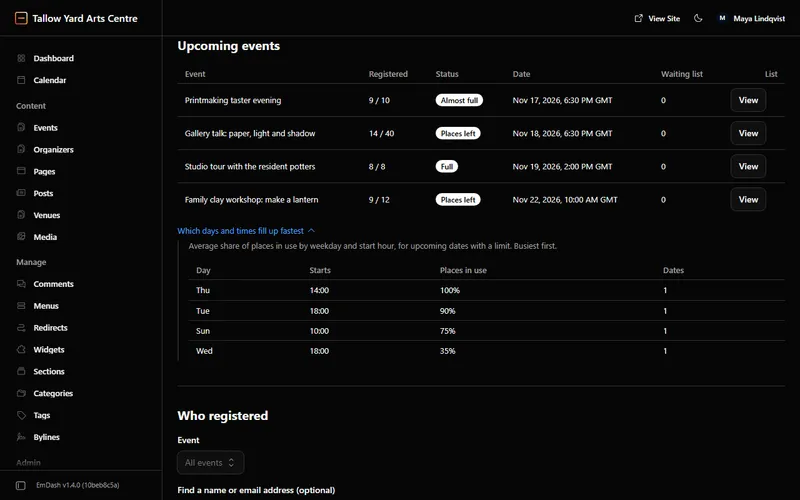
You watch places fill
Full and almost-full sessions, the waiting list and requests to approve, at a glance.
What the organiser sees
- Step 7 of 7
On the day, at the door
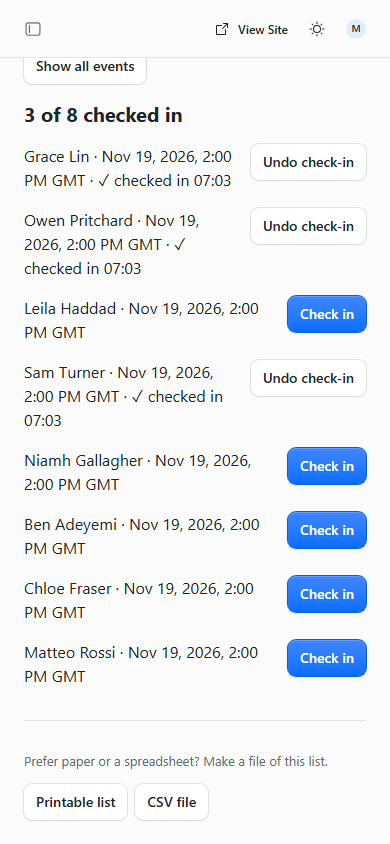
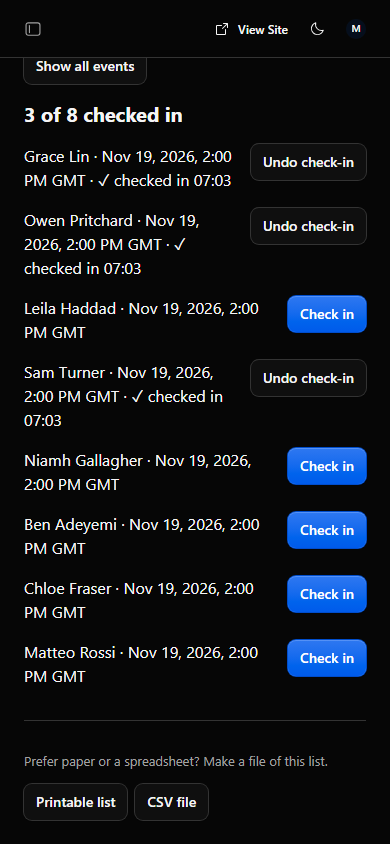
The door list on your phone: check people in, or print the list.
What the organiser sees
A paid concert with Tickets
A candlelit strings concert: ticket types, card or invoice payment, a QR ticket and the door check.
- Step 1 of 7
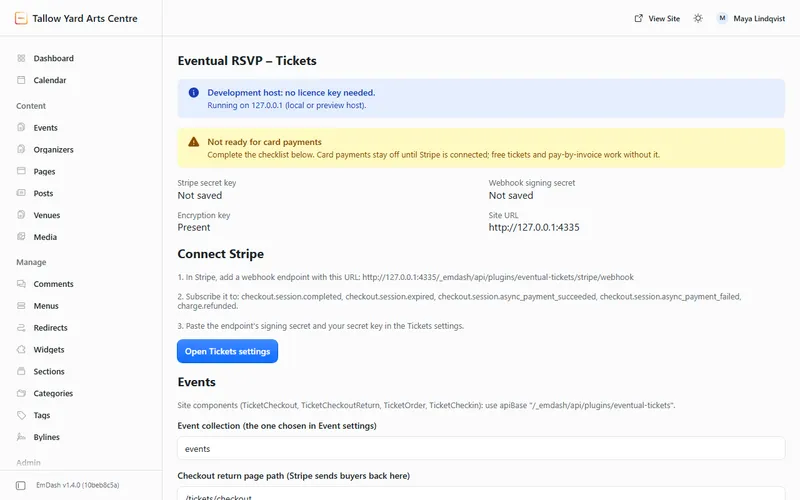
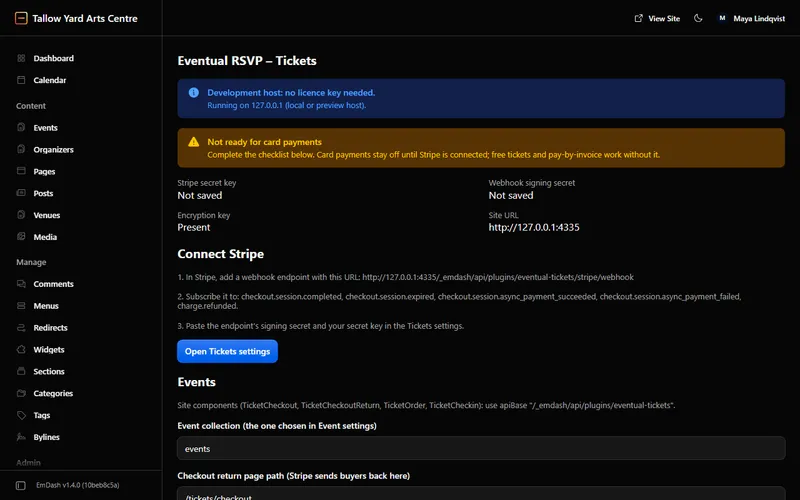
You set up sales
Connect Stripe when you want to take cards. Free tickets and pay by invoice work without it.
What the organiser sees
- Step 2 of 7
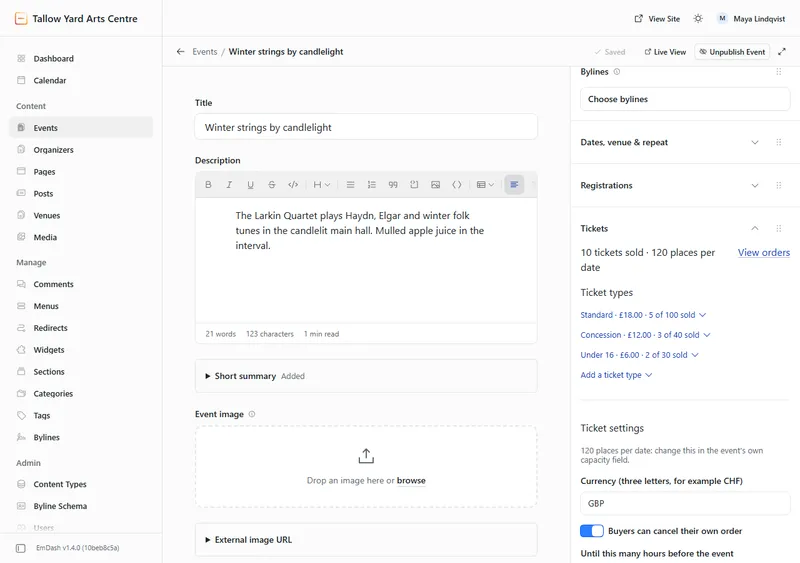
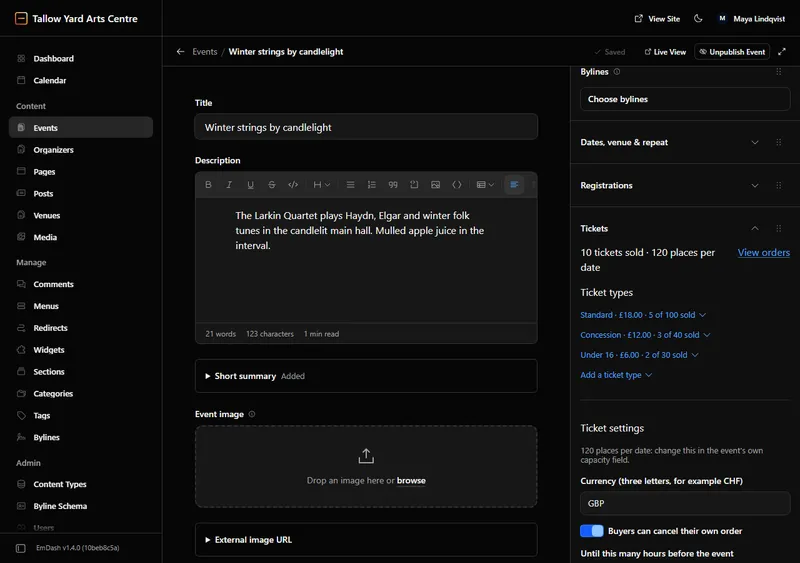
You add ticket types
In the event editor: a price for each type (standard, concession, under 16) and how many tickets are for sale.
What the organiser sees
- Step 3 of 7
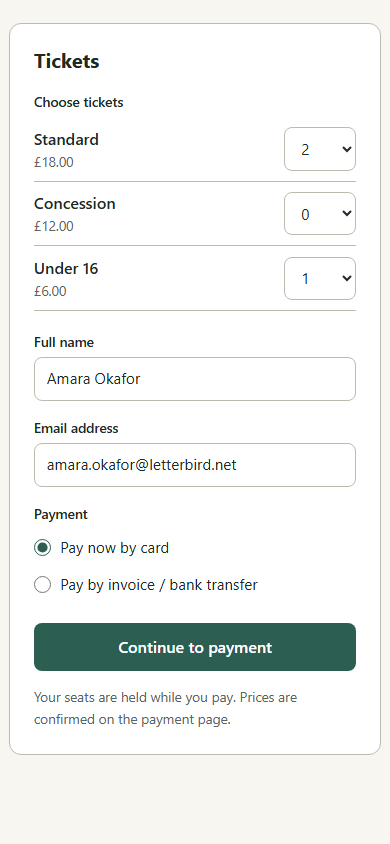
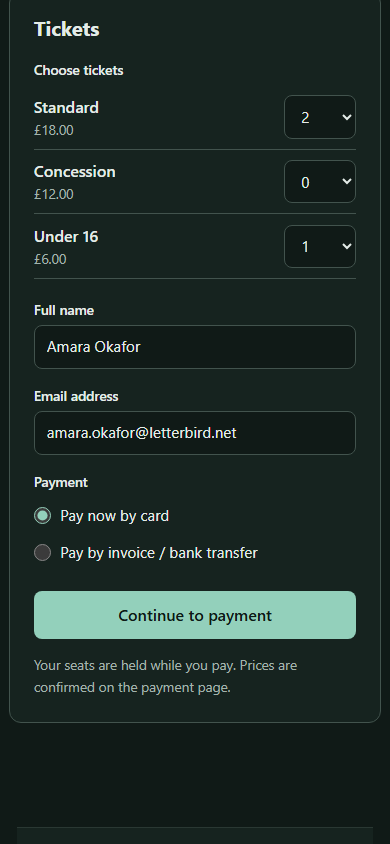
A guest picks tickets
On a phone, with no account. The tickets are held while they pay.
What the guest sees
- Step 4 of 7
Or pays by invoice
Bank transfer instructions appear with the reference to use.
What the guest sees
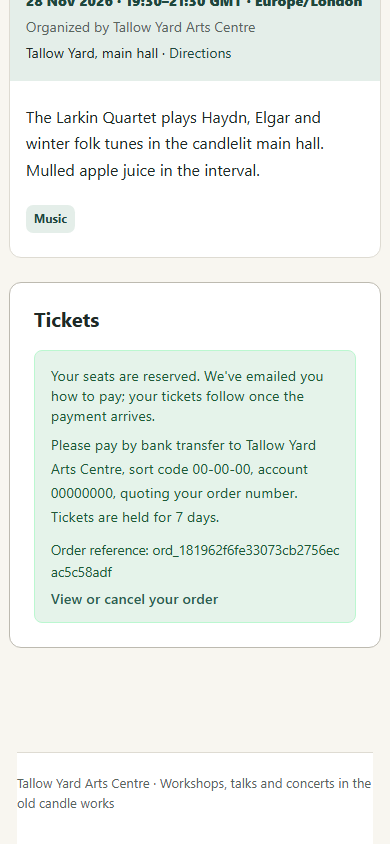
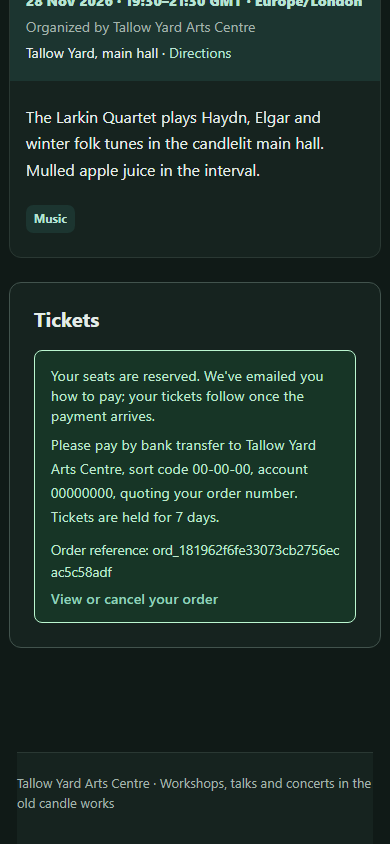
- Step 5 of 7
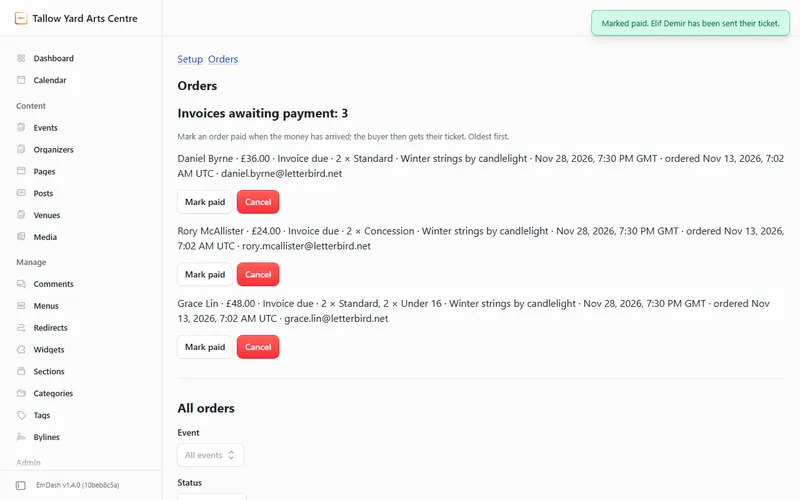
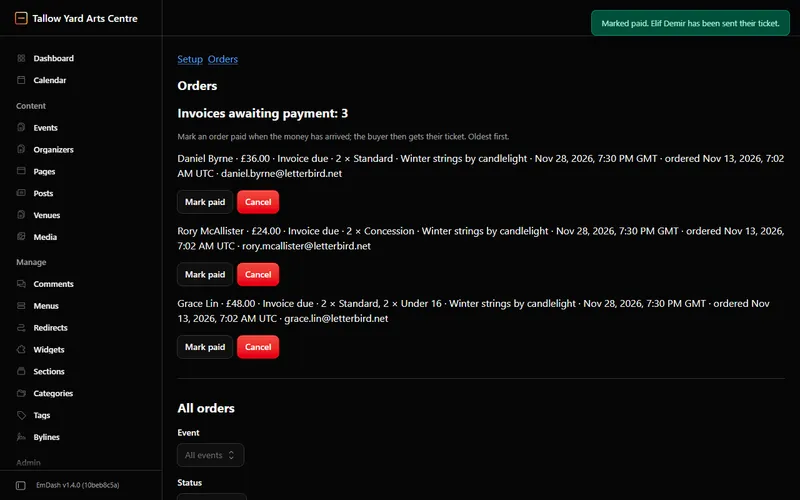
You mark the order paid
When the transfer arrives, one click confirms the order and sends the tickets.
What the organiser sees
- Step 6 of 7
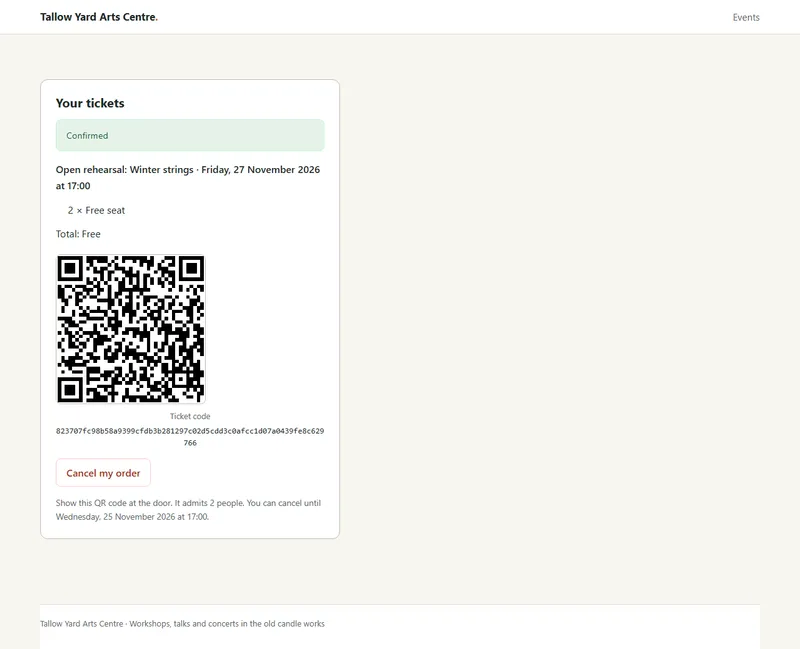
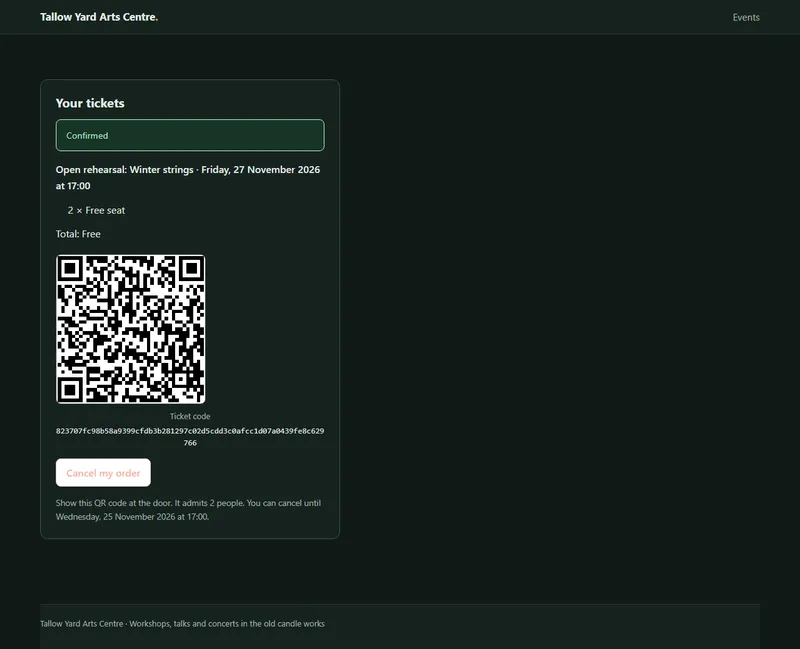
The guest has a ticket
A QR code and a backup code, and cancellation up to your deadline.
What the guest sees
- Step 7 of 7
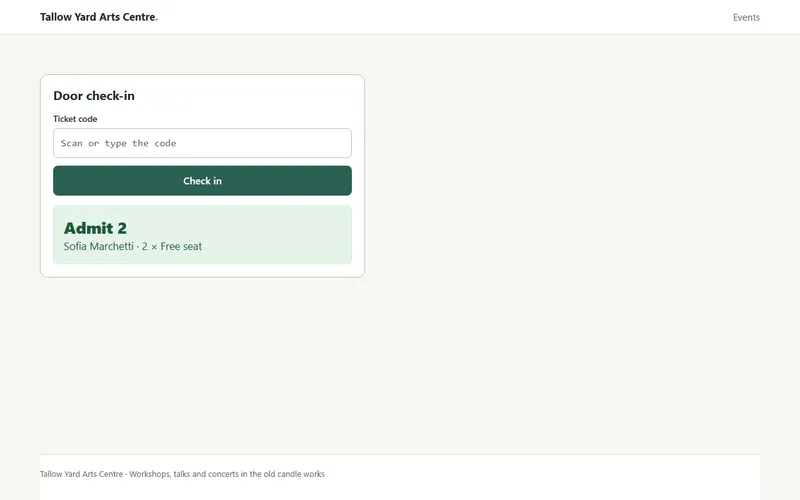
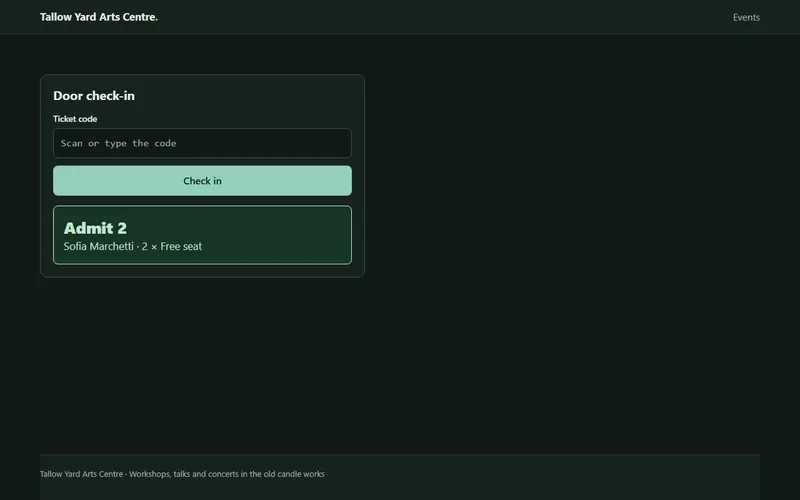
At the door
Scan or type the code: the screen shows how many people to admit.
What the organiser sees
The calendar with Core
Events as ordinary EmDash content, and seven ways to show them.
- Step 1 of 4
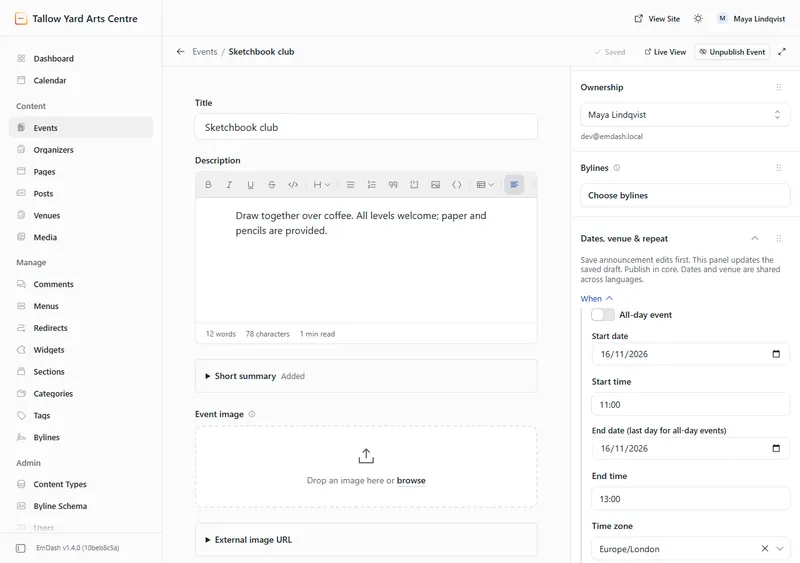
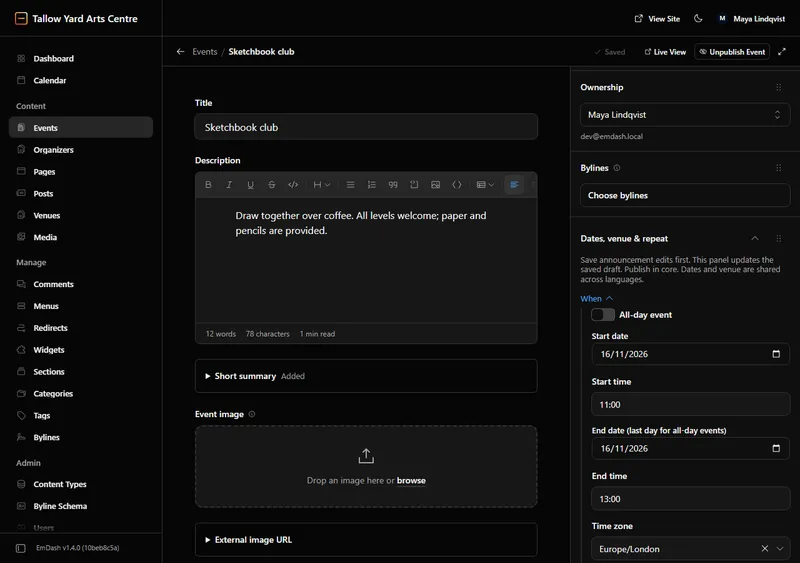
You write the event
Title, text, image, dates and venue, in the EmDash editor you already use, in several languages.
What the organiser sees
- Step 2 of 4
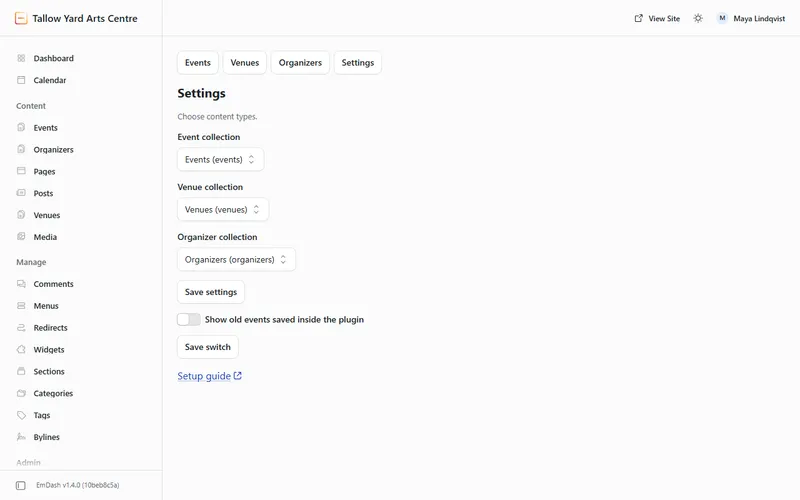
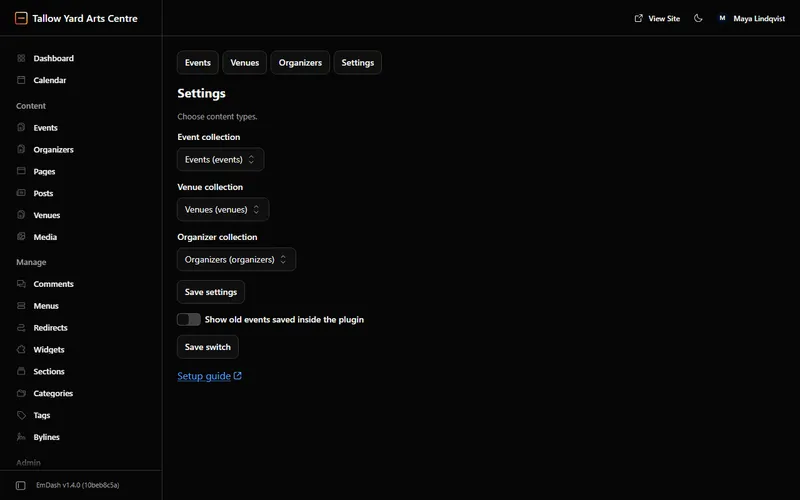
You set it up
Point the plugin at the EmDash collections that hold your events, venues and organisers.
What the organiser sees
- Step 3 of 4
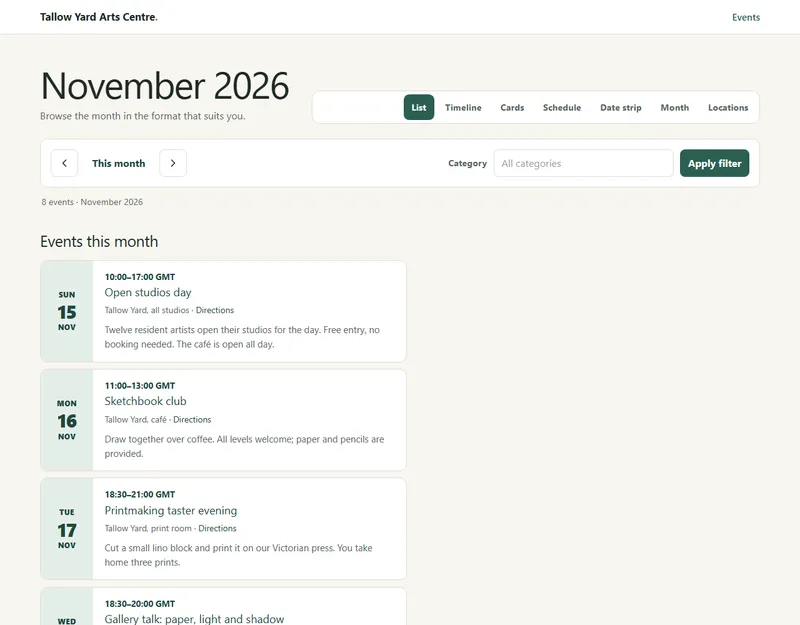
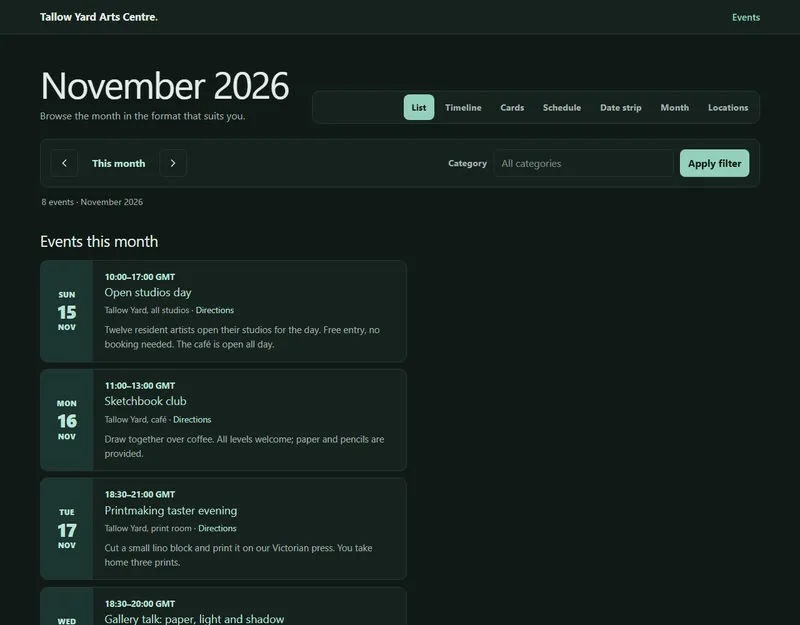
Visitors browse the calendar
List, timeline, cards, schedule, dates, month or locations, with no JavaScript.
What the guest sees
- Step 4 of 4
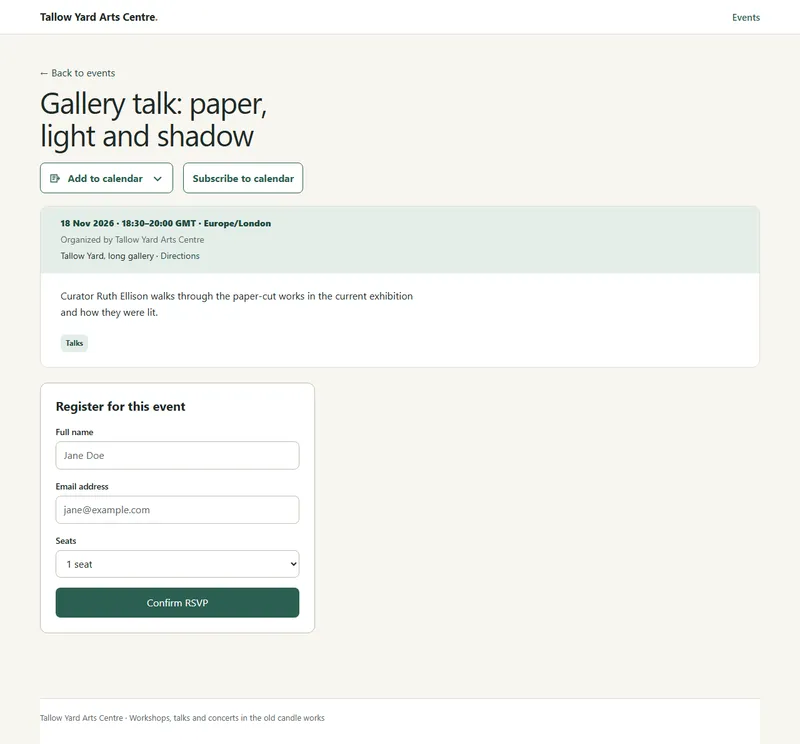
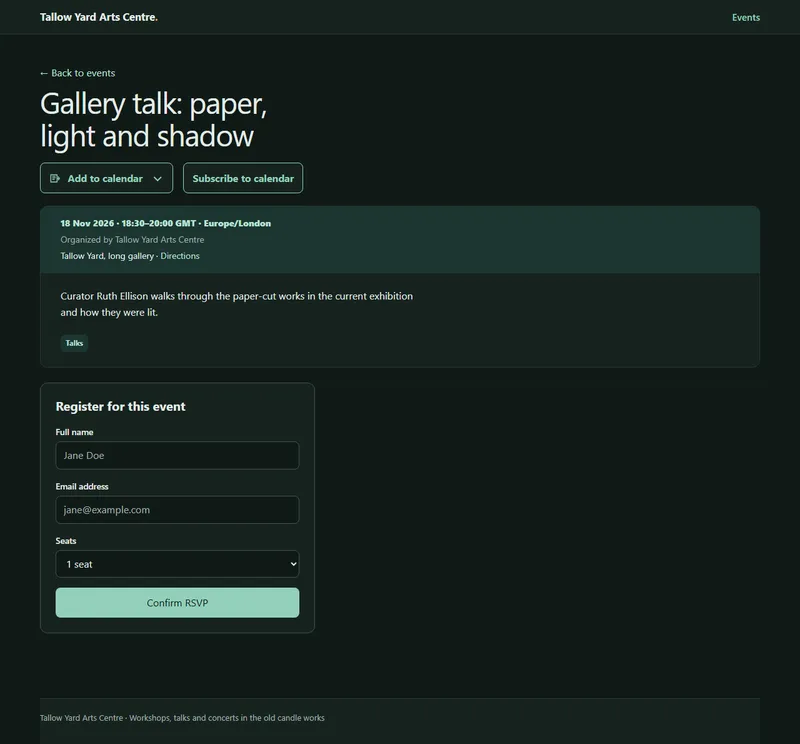
And opens an event
With buttons to add it to their calendar or subscribe.
What the guest sees
The details, next.
Each plugin has its own page, with every feature and its limits.